Skills
18 Claude Skills to Automate Your Scheduling
The Ootto Team · 7 min read · June 12, 2026
How to use this
1Connect Claude to Instagram
Connect Claude to your Instagram account
One click opens Claude with the connector already filled in - sign in, authorize, and it's live. No key to copy, no setup outside your browser.
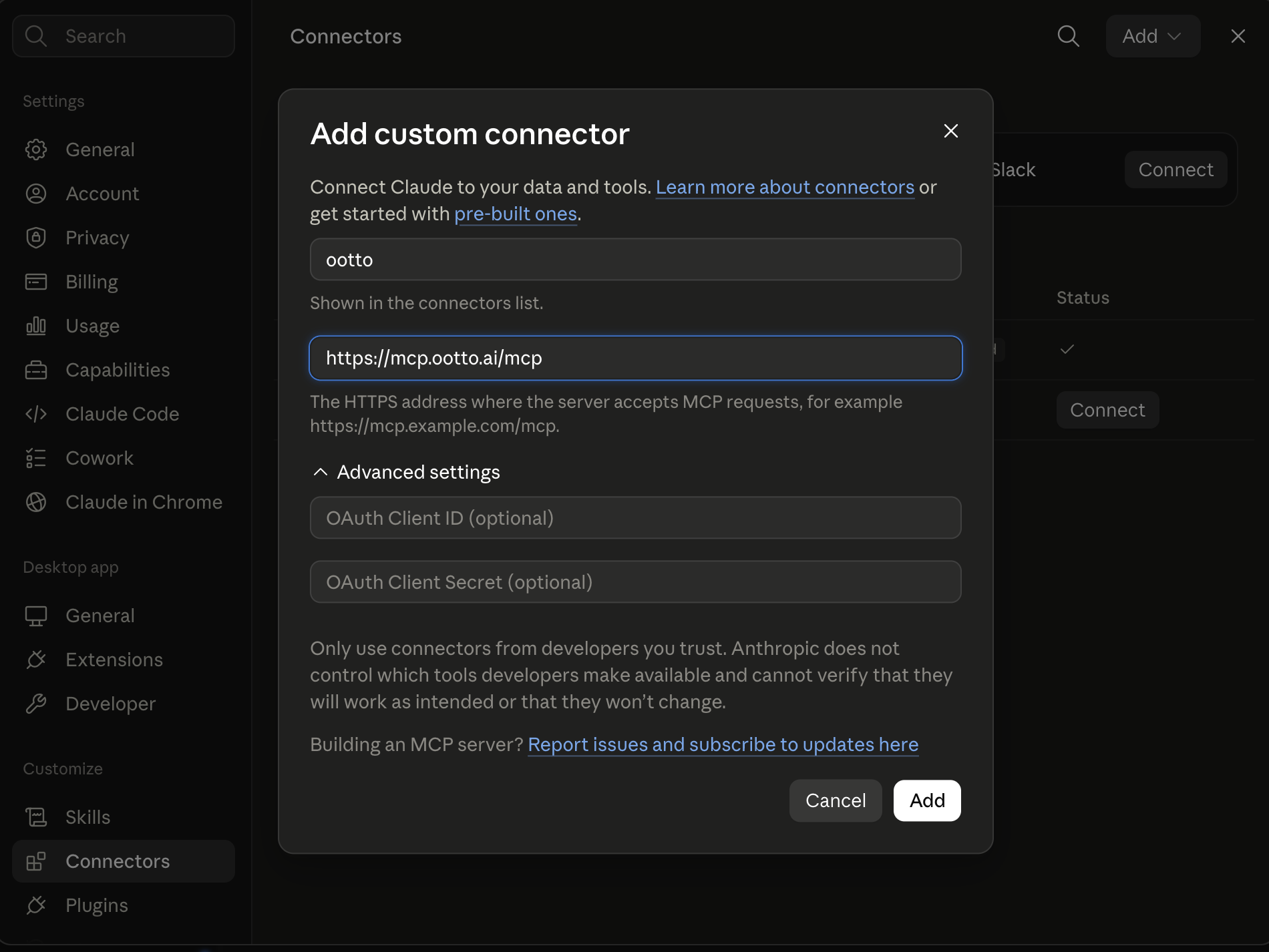
https://mcp.ootto.ai/mcpConnect2Add the skills
Once Claude can reach your account, give it the methods to work with. Clone the free repository and Claude discovers the skills automatically.
git clone --depth 1 https://github.com/Ootto-AI/claude-content-skills.git && bash claude-content-skills/install.shBrowse all 30 skills on GitHubInstructions: how to connect your Instagram account to Claude
Connect above does this for you. If Claude ever opens the dialog empty, here's exactly what goes where:
Ootto
Your 24/7 Instagram Growth Operator
Skip the manual setup
- Posts finished Reels straight to your Instagram
- Real motion-graphic Reels, not slideshows
- Built around your own photos and footage
- Finds winning content opportunities in your niche
- Writes on-brand scripts and captions
- Answers every comment by your own keyword rules
- DMs qualified leads and starts the conversation
- Runs up to 50 Instagram accounts
One AI. Every Post. Every Comment. More Leads. More Sales.
Scheduling eats more of your week than it should: trading three emails to find a time, sending reminders so people actually show, untangling a double-booking, then writing up the agenda and chasing the action items afterward. Every one of these is a small job — and there are dozens of them a week. This is a set of prompt-based workflows that take that admin off your plate: hand Claude the details and it proposes times, drafts the reminder, sorts the reschedule, builds the agenda, and pulls the action items out of your notes.
They're markdown. Add them to Claude as a Project, or paste them as prompts.
Get all of these as files: the whole set is free on GitHub → Claude Scheduling Skills. Install it as a Claude Code plugin, or copy any prompt below.
What these are
A skill is a reusable prompt that does one job well — propose meeting times, write a reminder, clean up your week. No code, no setup. You either paste it into Claude with your data (an email thread, your availability, last meeting's notes), or save it inside a Claude Project so Claude keeps your business context and you reuse it in one click. Together they replace the back-and-forth, the manual reminders, and the after-meeting write-up that usually fall on you.
Setup: adding skills to Claude Projects
- Open Claude (claude.ai or the desktop app) and create a Project.
- Add your business context as project knowledge — your working hours, timezone, meeting types and default lengths, who books with you, and your tone.
- Paste any skill below into the chat, add your data (an invite request, your free slots, a calendar export, meeting notes), and run it.
- Reuse it whenever the job comes up. The Project remembers your hours and style so you don't re-explain them every time.
Setup: connecting live data (MCP)
For skills that need your live calendar, an MCP connector lets Claude read your availability and bookings directly instead of you pasting them in. It's optional and more technical to set up.
No MCP? Still works. Every skill below runs fine if you just paste the raw data — a copied availability block, a screenshot of your week, an exported notes doc.
If you'd rather not wire anything up, pasting raw data is completely fine and gets you the same output.
The 5 most used
1. Propose Meeting Times
Turns a "when are you free?" into two or three concrete slots, ready to send.
Someone wants to meet: [paste their message]. My availability this week and next is [paste]. I'm in [timezone]; they're in [timezone]. Write a short reply proposing three specific time slots in both timezones and ask them to pick one. Keep it warm and under 70 words.
2. 24h/1h Reminder Sender
Drafts the confirmation and reminder messages that get people to actually show up.
Here's an upcoming booking: [name, date, time, meeting type, location/link]. Write two short reminder messages — one to send 24 hours before, one 1 hour before. Friendly, clear about time and timezone, include the link, and add a single line asking them to reply "yes" to confirm or "change" to move it.
3. Auto-Reschedule on Decline
When someone cancels or declines, it offers new times instead of letting the meeting die.
This person just declined or asked to move our meeting: [paste their message]. Original slot was [date/time]. My next available slots are [paste]. Write a no-friction reply that acknowledges it, offers two or three new times, and makes it easy to grab one — no guilt, no back-and-forth.
4. Pre-Read & Agenda Builder
Turns a vague meeting into a tight agenda with goals and timeboxes before anyone joins.
I have a meeting about [topic] with [who] on [date]. Goal: [what I want out of it]. Context: [paste any background]. Build a short agenda — desired outcome at the top, 3-5 discussion points with rough timeboxes, and one question to send attendees beforehand so they come prepared.
5. Notes → Action Items Extractor
Reads your messy meeting notes and returns a clean list of who-does-what-by-when.
Here are my notes from a meeting: [paste]. Pull out every action item as "[owner] — [task] — [due date]". List decisions made separately. Flag anything that has no clear owner or deadline so I can assign it. Then draft a two-line recap email I can send the group.
All 18 skills
Booking & Time Proposals
- Propose Meeting Times — turn a request into two or three concrete slots, ready to send (see above).
- Round-Robin Booking Router — given who's free and who's next up, assign an incoming booking to the right team member.
- Group Availability Finder — paste several people's free/busy blocks and get the times that work for everyone.
Reminders & No-Show Reduction
- 24h/1h Reminder Sender — draft the confirmation and reminder messages that get people to show (see above).
- No-Show Follow-Up Sequence — a short, polite series to re-book someone who missed without making it awkward.
- Confirm-or-Cancel Nudge — a single message that asks the booker to confirm or release the slot, so you're not holding dead time.
Rescheduling & Conflict Handling
- Auto-Reschedule on Decline — offer new times the moment someone cancels or asks to move (see above).
- Conflict Bumper — when two things collide, decide which to keep by priority and draft the message moving the other.
- Timezone Normalizer — take times scattered across timezones and restate them cleanly so nobody joins an hour off.
Calendar Hygiene & Time-Blocking
- Calendar Cleanup — paste your week and get what to keep, shorten, move, or decline, with reasons.
- Focus-Time Blocker — find and protect deep-work blocks around your existing meetings, and draft holds for them.
- Weekly Time-Block Planner — turn your task list and fixed meetings into a realistic block-by-block plan for the week.
Meeting Prep, Agendas & Action Items
- Pre-Read & Agenda Builder — turn a vague meeting into a tight, timeboxed agenda with a goal (see above).
- Recurring-Meeting Prep Brief — for a standing meeting, pull last time's open items into a ready-to-run brief.
- Notes → Action Items Extractor — messy notes into a clean who-does-what-by-when list plus a recap (see above).
Follow-Through & Repeatable Sequences
- Action-Item Rollover Tracker — carry unfinished items forward across meetings so nothing quietly drops.
- Client Onboarding Sequence — a scheduled series of welcome, kickoff, and check-in touches for a new client.
- SOP / Checklist Generator — turn a process you describe into a documented, repeatable checklist your team can follow.
Every one of these is genuinely useful on its own. The catch is the same for all 18: you still have to remember to run them, paste the data, and send the output. Manageable for one meeting — a grind across a full calendar, every day. If reminders are your biggest pain, our guide to automating appointment scheduling with AI goes deeper on cutting no-shows, and how to automate lead follow-up with AI covers the re-book sequences that overlap with no-show recovery.
The faster path: let Ootto run them for you
The 18 skills above are free and they work. But they're still manual — you open Claude, paste the availability or the notes, and send the result yourself. That's fine once a day. It's not fine across a calendar full of bookings, reminders, reschedules, and follow-ups.
Ootto is the done-for-you version. Connect your tools once (Gmail, Slack, your calendar, WhatsApp and more), Ootto learns how your business schedules — your hours, your meeting types, your tone — and it runs these same jobs automatically: proposing times, sending confirmations and reminders, handling reschedules, keeping your week clean, and pulling action items out after the call. No pasting, no remembering. It gets sharper every week. (Wondering how it stacks up against a build-it-yourself assistant? See Ootto vs Lindy, or start with the complete guide to AI business automation.)
The skills are manual mode. Ootto is autopilot. See plans on the pricing page.
Route A: do it yourself
Start with the exact free skill for this outcome
MIT, no account, no email. Install first, then run the command for your account.
For proposing a time: Meeting Scheduler Reply
git clone --depth 1 https://github.com/Ootto-AI/claude-scheduling-skills.git && bash claude-scheduling-skills/install.sh
Installs the free MIT Scheduling Skills bundle into ~/.claude/skills in one shot.
/meeting-scheduler-reply [meeting thread + your open slots]
Reads a scheduling thread and drafts a reply that locks in a time in as few rounds as possible.
Route B: let Ootto run it
Ootto replicates this on autopilot
Open the dashboard, connect once, then let the pipeline handle research, production, and lead replies.
Open the connector dashboard
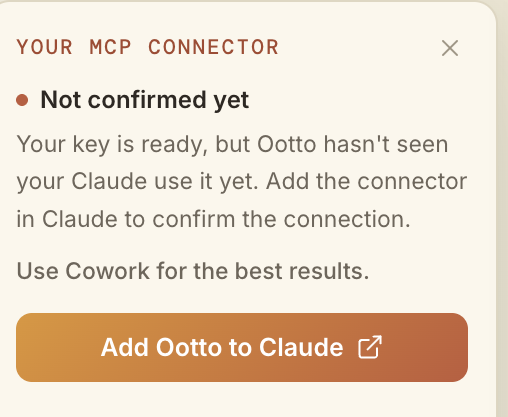
Go to /content/login, sign in, and open your Ootto content dashboard.
Add Ootto to Claude
Use the one-button Add flow so Ootto appears in Claude's Connectors panel.
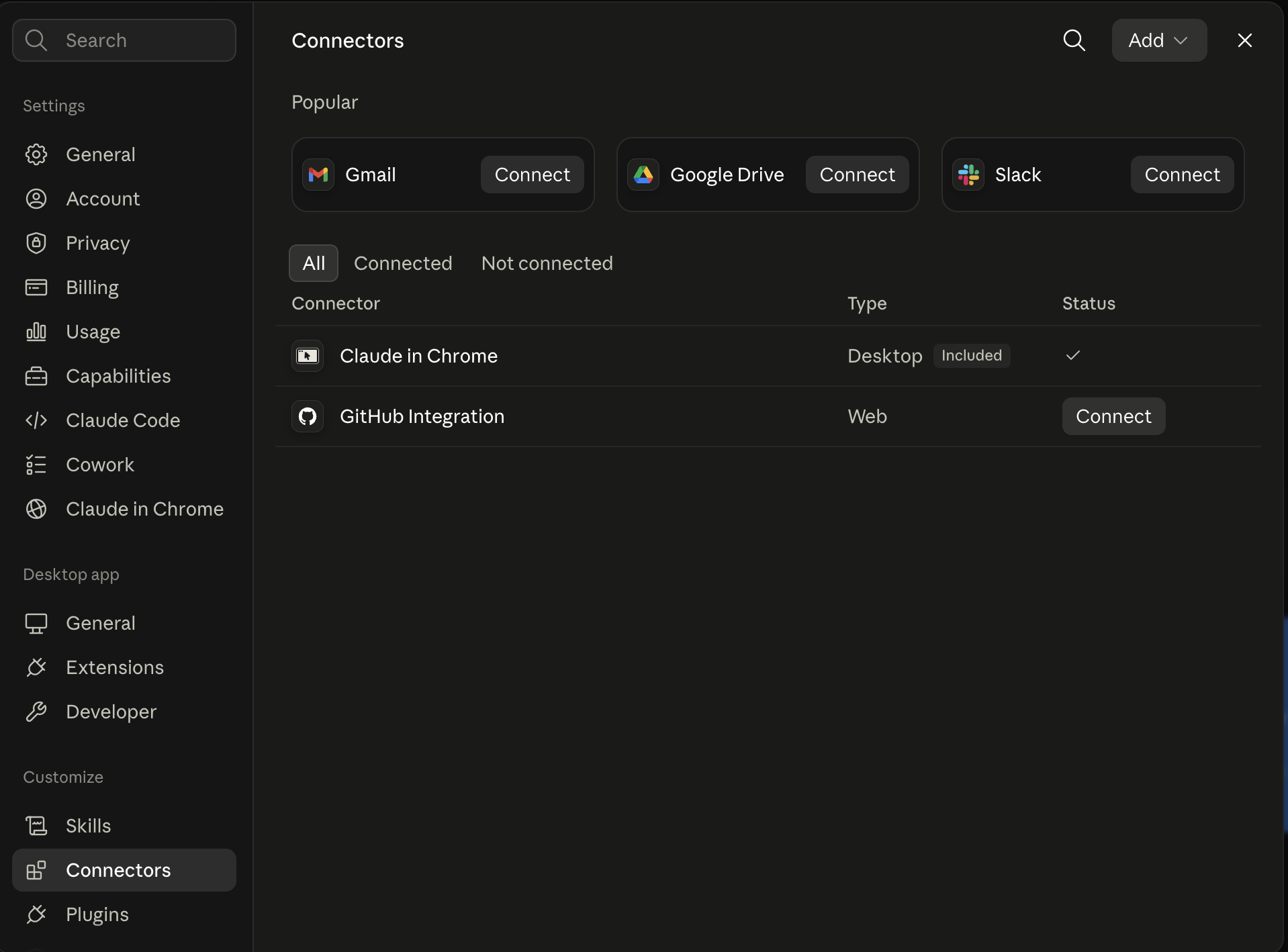
Claude shows the connector
The connector lands in Claude's Connectors settings, confirming Ootto is wired.
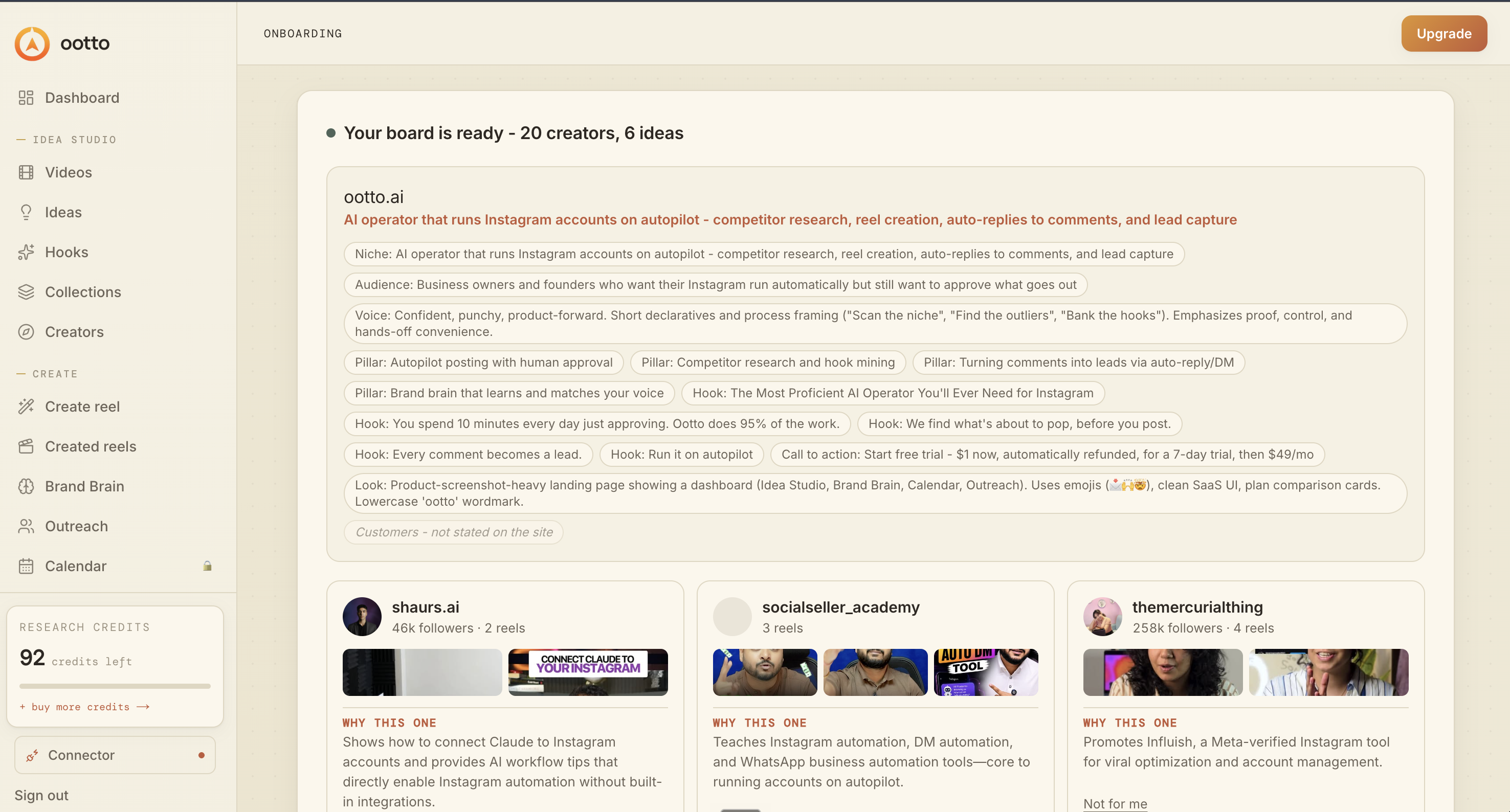
Board reads back your context
Your audience, pillars, voice, and creator signals are filled from account context.
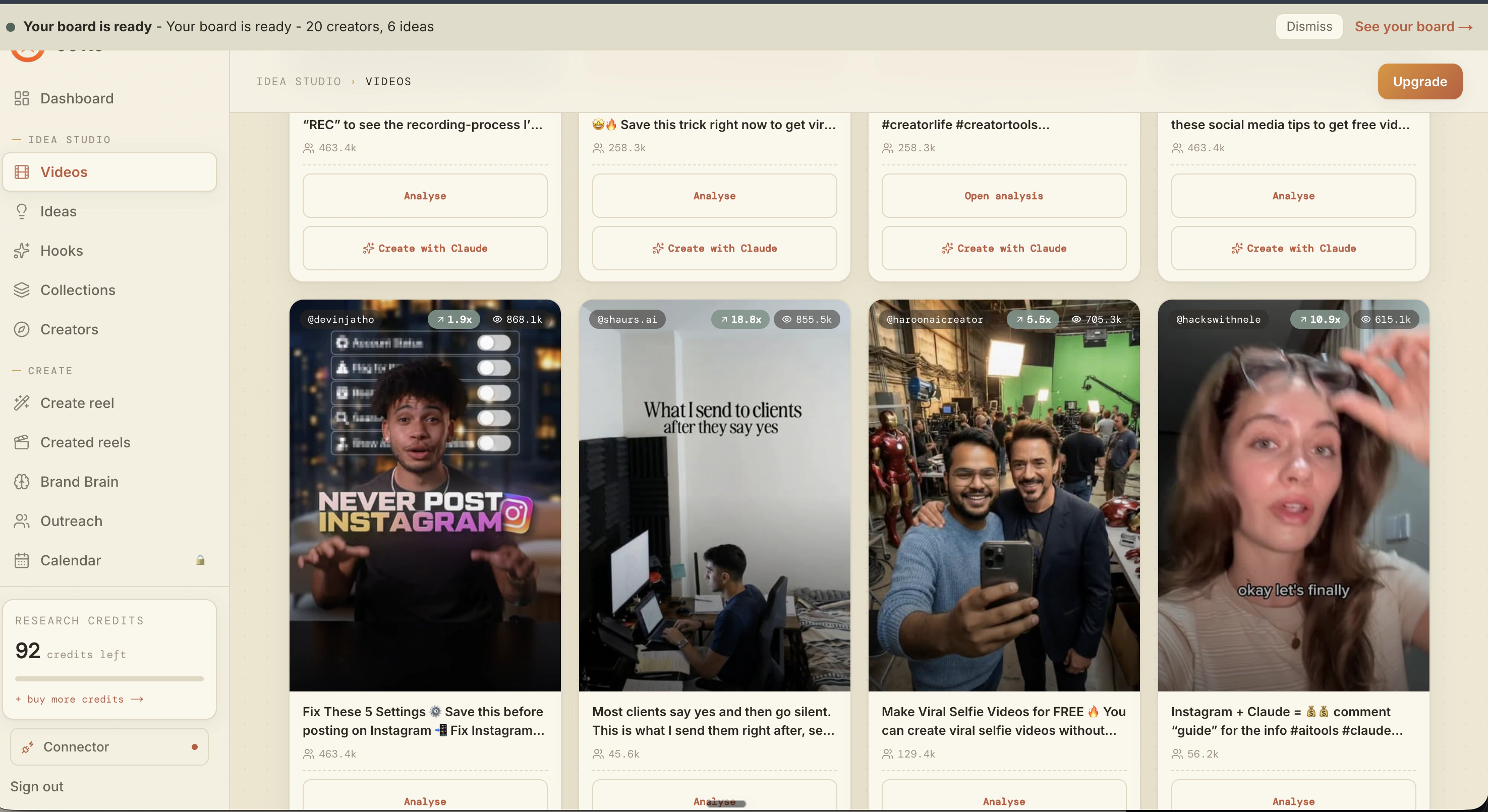
What is actually working now
Ootto pulls what is moving in your niche and loads ranked examples in board.
Reels post, comments get answered
Finished reels publish to Instagram and comments are answered with public replies plus DM follow-ups.
Ootto
Run Ootto in your Claude
Skip the manual setup
- Finds winning content opportunities
- Creates on-brand Reels and captions
- Replies to comments instantly
- Starts personalized DM conversations
- Qualifies leads automatically
- Helps book calls and drive sales
- Learns and improves with every interaction
One AI. Every Post. Every Comment. More Leads. More Sales.
Get started$1 today, non-refundable. Starts your 7-day trial, then $48/mo. Cancel anytime.
Get started