Skills
27 Claude Skills to Automate Your Inbox
The Ootto Team · 8 min read · June 12, 2026
How to use this
1Connect Claude to Instagram
Connect Claude to your Instagram account
One click opens Claude with the connector already filled in - sign in, authorize, and it's live. No key to copy, no setup outside your browser.
https://mcp.ootto.ai/mcpConnect2Add the skills
Once Claude can reach your account, give it the methods to work with. Clone the free repository and Claude discovers the skills automatically.
git clone --depth 1 https://github.com/Ootto-AI/claude-content-skills.git && bash claude-content-skills/install.shBrowse all 30 skills on GitHubInstructions: how to connect your Instagram account to Claude
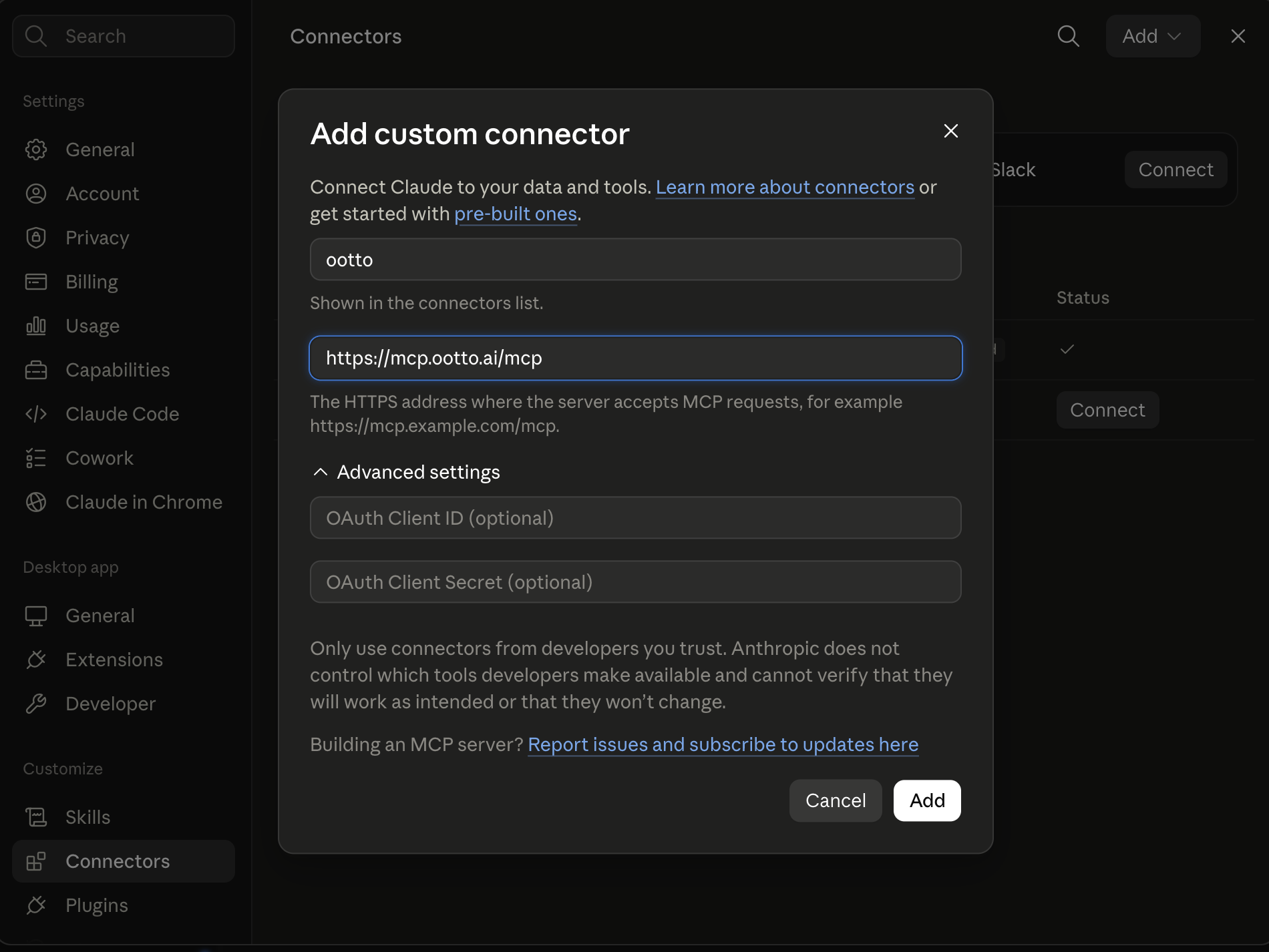
Connect above does this for you. If Claude ever opens the dialog empty, here's exactly what goes where:
Ootto
Your 24/7 Instagram Growth Operator
Skip the manual setup
- Posts finished Reels straight to your Instagram
- Real motion-graphic Reels, not slideshows
- Built around your own photos and footage
- Finds winning content opportunities in your niche
- Writes on-brand scripts and captions
- Answers every comment by your own keyword rules
- DMs qualified leads and starts the conversation
- Runs up to 50 Instagram accounts
One AI. Every Post. Every Comment. More Leads. More Sales.
Your inbox is the job you never applied for. A hundred messages a day — some urgent, most not — and every one wants a decision, a reply, or a "let me get back to you." The mental cost isn't the typing. It's the constant re-reading, the re-prioritizing, and the nagging fear you missed something that mattered.
These 27 skills hand the repetitive parts to Claude. Each one is a structured prompt that does a single inbox job: sort the unread pile, draft a reply that sounds like you, summarize a 40-message thread, turn an email into a task, propose meeting times, or clear the newsletter clutter. You paste the email, Claude does the work.
They're markdown. Add them to Claude as a Project, or paste them as prompts.
Get all of these as files: the whole set is free on GitHub → Claude Inbox Skills. Install it as a Claude Code plugin, or copy any prompt below.
What these are
A skill is a reusable prompt that does one job well. Not a tool you install, not code you maintain — a block of text you keep handy and reuse whenever the job comes up.
"Reply in my voice" replaces the ten minutes you spend rewriting a draft until it sounds like you. "Thread summary" replaces scrolling to the top of a chain to figure out what was decided. "Email to task" replaces the sticky note you'll lose. Together they replace the low-grade, all-day attention tax that an inbox charges — without you handing over the keys.
Setup: adding skills to Claude Projects
- Open Claude (claude.ai or the desktop app) and create a Project.
- Add your business context as project knowledge — who you are, your tone, your services, the way you sign off, the people you email most.
- Paste any skill below into the chat, add your data (an email, a full thread, a screenshot of your unread list), and run it.
- Reuse it whenever the job comes up. The Project remembers your voice and context, so each reply already sounds like you without re-explaining.
Setup: connecting live data (MCP)
For skills that work better with live mail, an MCP connector lets Claude read your inbox directly instead of you copying messages over. It's optional and more technical to set up — worth it if you triage all day, skippable if you don't.
No MCP? Still works. Every skill below runs fine if you just paste the raw data — a single email, a long thread, or a screenshot of your inbox.
Pasting raw text is the default path, and it's enough for everything here.
The 6 most used
1. Auto-Sort by Intent
Turns a wall of unread mail into clean buckets so you know what to open first.
Here are my unread emails from the last 24 hours: [paste subject lines + senders, or full text]. Sort each into one bucket: (1) needs my reply today, (2) reply can wait, (3) FYI only, (4) cold pitch / can ignore. List them under each bucket, shortest list last. For bucket 1, add a one-line reason it's urgent.
2. Draft Reply in My Tone
Writes the reply the way you'd write it — direct, warm, no corporate filler.
Here's an email I need to answer: [paste]. Draft my reply. My tone: friendly but to the point, plain words, no "I hope this email finds you well," I sign off with just my first name. Keep it under 100 words and give me one alternative version that's a touch warmer.
3. Thread Summary
Collapses a long back-and-forth into what was said, what was decided, and what's still open.
Here's a long email thread: [paste]. Give me: (1) a 3-sentence summary, (2) what's already been decided, (3) what's still open and needs my answer, (4) who is waiting on me. Don't include pleasantries — just the substance.
4. Email to Task
Pulls the actual to-do out of an email so nothing lives only in your inbox.
Read this email: [paste]. Extract every action item it creates for me as a task list. For each: a short task name, who it's for, and the due date if one is mentioned or implied. If a reply from me is the action, say so. End with the single most time-sensitive one.
5. Propose Meeting Times
Ends the scheduling back-and-forth in one message.
Someone wants to meet: [paste their message]. Here's my availability: [paste]. Write a reply that offers three specific time slots (with the time zone), asks them to pick one, and adds my booking link as a backup: [link]. Keep it short and friendly.
6. One-Click Unsubscribe
Finds the recurring senders quietly eating your attention and tells you which to cut.
Here's a list of senders / newsletters cluttering my inbox: [paste sender names + roughly how often each emails]. Tell me which to unsubscribe from (low value, never opened), which to keep, and which to route to a "read later" folder instead. Group your answer as Unsubscribe / Keep / Route, with a one-line reason each.
All 27 skills
Triage & prioritize
- Auto-Sort by Intent — sort unread mail into reply-now / later / FYI / ignore (see above).
- Flag Urgent — scan a batch and surface only the messages that genuinely can't wait today.
- VIP / Sender Priority — rank a pile by who sent it, so key clients and your team float to the top.
- Spam & Cold-Pitch Filter — separate real mail from cold outreach and "quick question?" pitches.
- Surface the "Needs You" Queue — pull out only the emails waiting on a decision or answer from you.
Reply in your voice
- Draft Reply in My Tone — paste a message, get a draft that sounds like you (see above).
- Quick Acknowledge — a two-line "got it, here's what happens next" so nothing sits silent.
- Decline Politely — a kind, firm no to a request, ask, or invite you can't take.
- Chase a Reply — a natural nudge on an email that's gone quiet, without sounding annoyed.
- Reply With Past Context — answer a returning contact using what was said in earlier emails.
Summarize & extract action
- Thread Summary — long chain → key points, the decision, and what's open (see above).
- Daily Inbox Digest — turn the day's mail into a short read: what's new, what's urgent, what to do.
- Email to Task — pull the to-dos out of an email into a clean task list (see above).
- Extract Dates & Deadlines — find every date, deadline, and time commitment buried in a message.
Draft common business emails
- Refund Email — a clear, no-defensiveness reply approving or explaining a refund.
- Quote / Estimate Reply — turn a few bullets into a client-ready price and scope.
- Apology / Service Recovery — own a mistake, fix it, and keep the relationship.
- Status Update — a short, reassuring "here's where your project stands" note.
- Payment / Invoice Reminder — the right reminder for how overdue a payment is. More in our invoice-reminder guide.
Schedule, intro & FAQ replies
- Propose Meeting Times — offer specific slots and end the back-and-forth (see above).
- Send Booking Link — a one-line reply that hands over your scheduling link cleanly.
- Warm Intro Reply — respond to a referral or double-opt-in intro and move it forward.
- FAQ Auto-Answer — draft the answer to a question you get asked all the time, in your words.
Cleanup, unsubscribe & delegate
- One-Click Unsubscribe — spot the low-value senders worth cutting (see above).
- Newsletter Digest — compress a stack of newsletters into the few lines actually worth reading.
- Archive Low-Value — decide what's safe to archive now so only live mail stays in view.
- Delegate / Forward to Team — write the handoff note that forwards an email to the right person with context.
Every one of these is genuinely useful on its own. For the strategy behind stringing them together, see our companion playbook on how to automate your inbox with AI. The catch is the same for all 27, though: you still have to open Claude, paste the email, and send the output. Fine for a tricky reply — less fine for the 80 routine messages that arrive before lunch.
The faster path: let Ootto run them for you
The 27 skills above are free and they work. But they're still manual — every one starts with you opening Claude and copying an email across.
Ootto is the done-for-you version. Connect Gmail once, Ootto learns how you write and who matters to you, and it runs these same jobs automatically — triaging the unread pile, drafting replies in your voice, summarizing long threads, turning emails into tasks, proposing meeting times, and clearing the clutter — without you opening anything. It gets sharper every week as it sees more of your mail.
The skills are manual mode. Ootto is autopilot. (Weighing the options? See how it compares in Ootto vs Zapier.)
Route A: do it yourself
Start with the exact free skill for this outcome
MIT, no account, no email. Install first, then run the command for your account.
For clearing the inbox: Inbox Triage
git clone --depth 1 https://github.com/Ootto-AI/claude-inbox-skills.git && bash claude-inbox-skills/install.sh
Installs the free MIT Inbox Skills bundle into ~/.claude/skills in one shot.
/inbox-triage [paste your unread emails, one per block]
Sorts a full inbox into reply-now / later / ignore, with drafts for the urgent ones.
Route B: let Ootto run it
Ootto replicates this on autopilot
Open the dashboard, connect once, then let the pipeline handle research, production, and lead replies.
Open the connector dashboard
Go to /content/login, sign in, and open your Ootto content dashboard.

Add Ootto to Claude
Use the one-button Add flow so Ootto appears in Claude's Connectors panel.
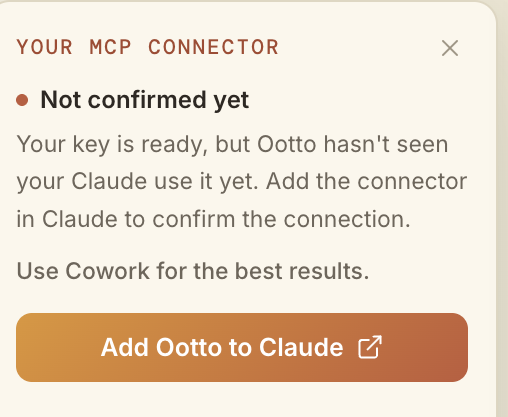
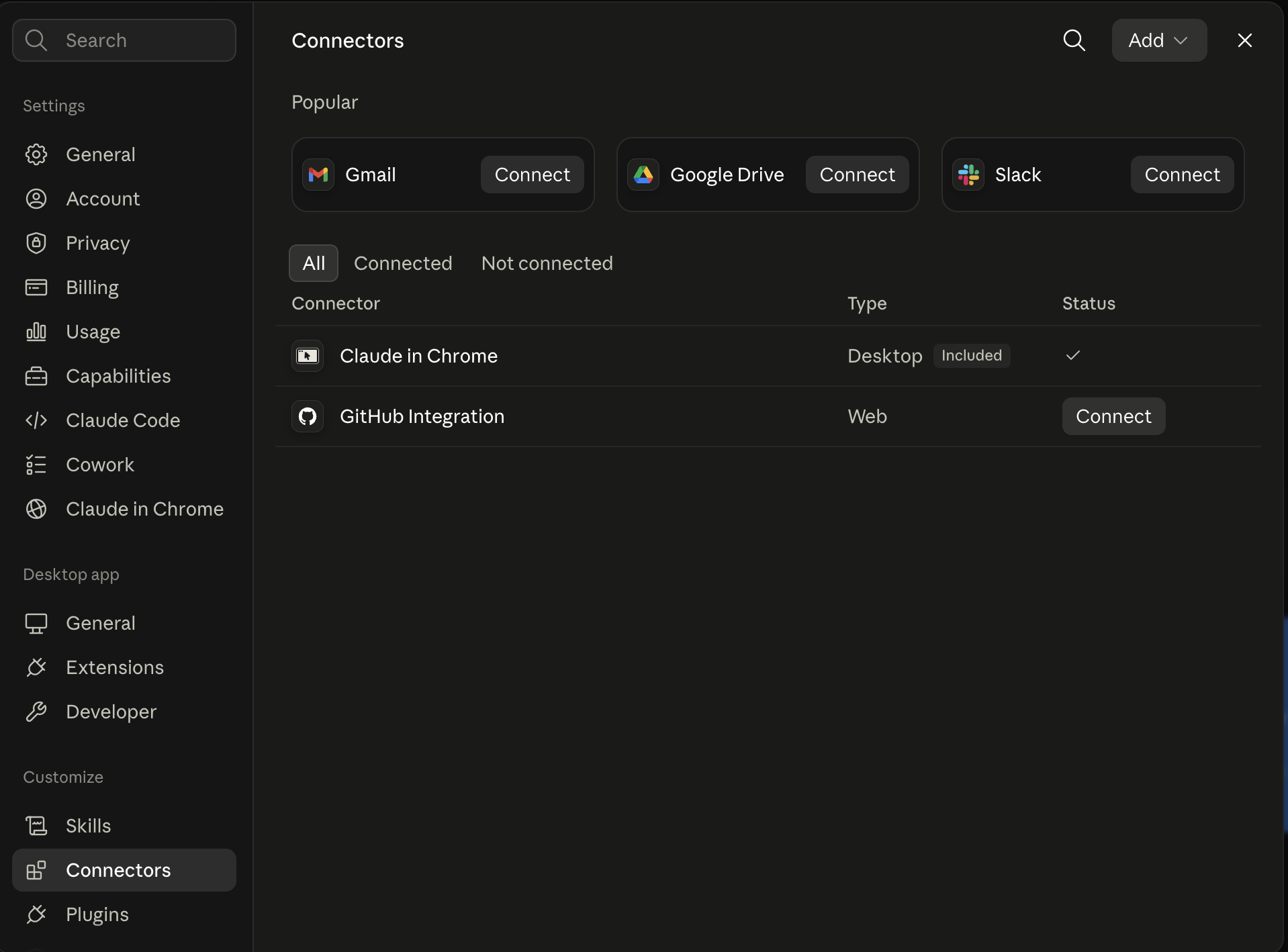
Claude shows the connector
The connector lands in Claude's Connectors settings, confirming Ootto is wired.
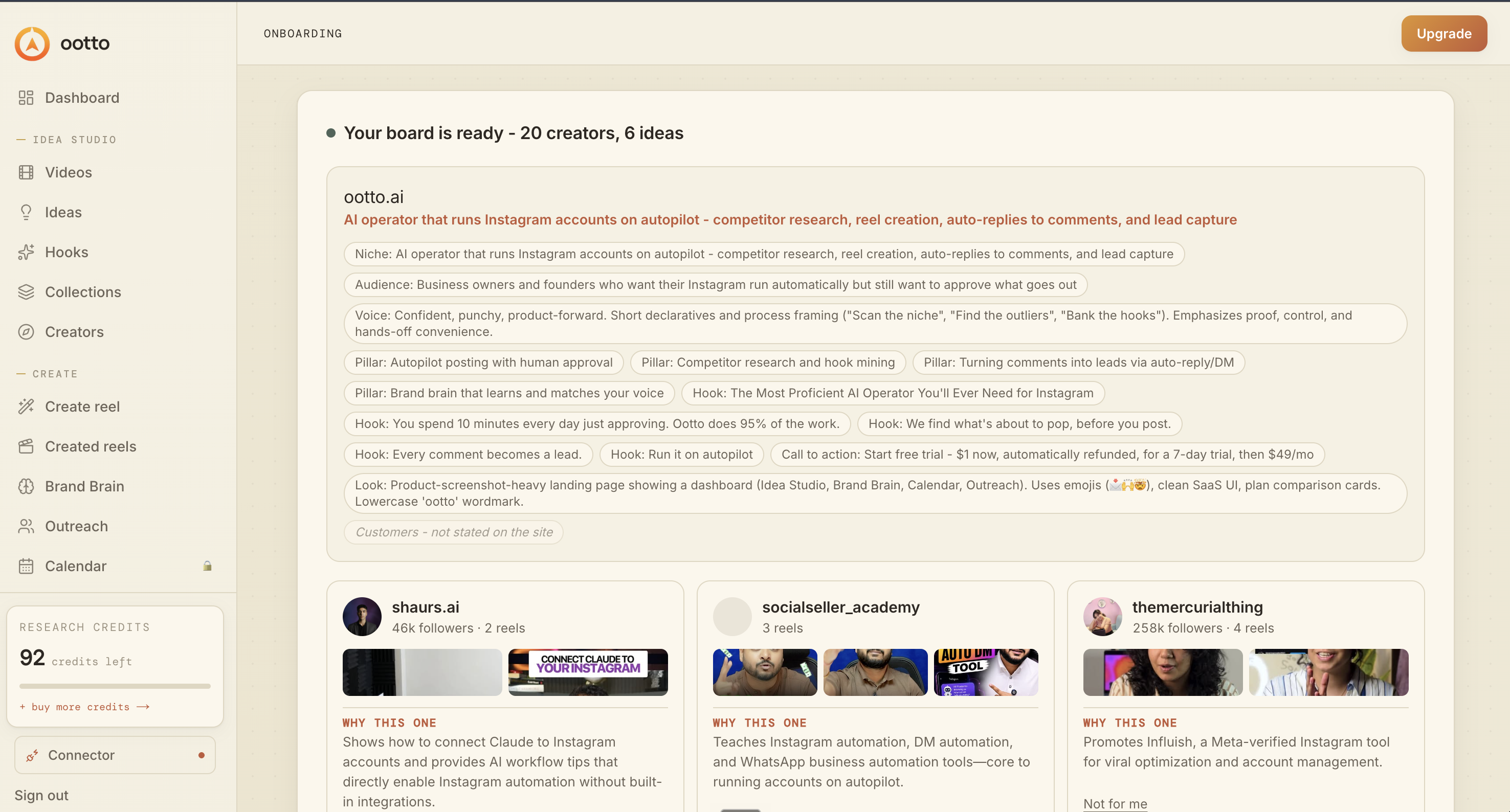
Board reads back your context
Your audience, pillars, voice, and creator signals are filled from account context.
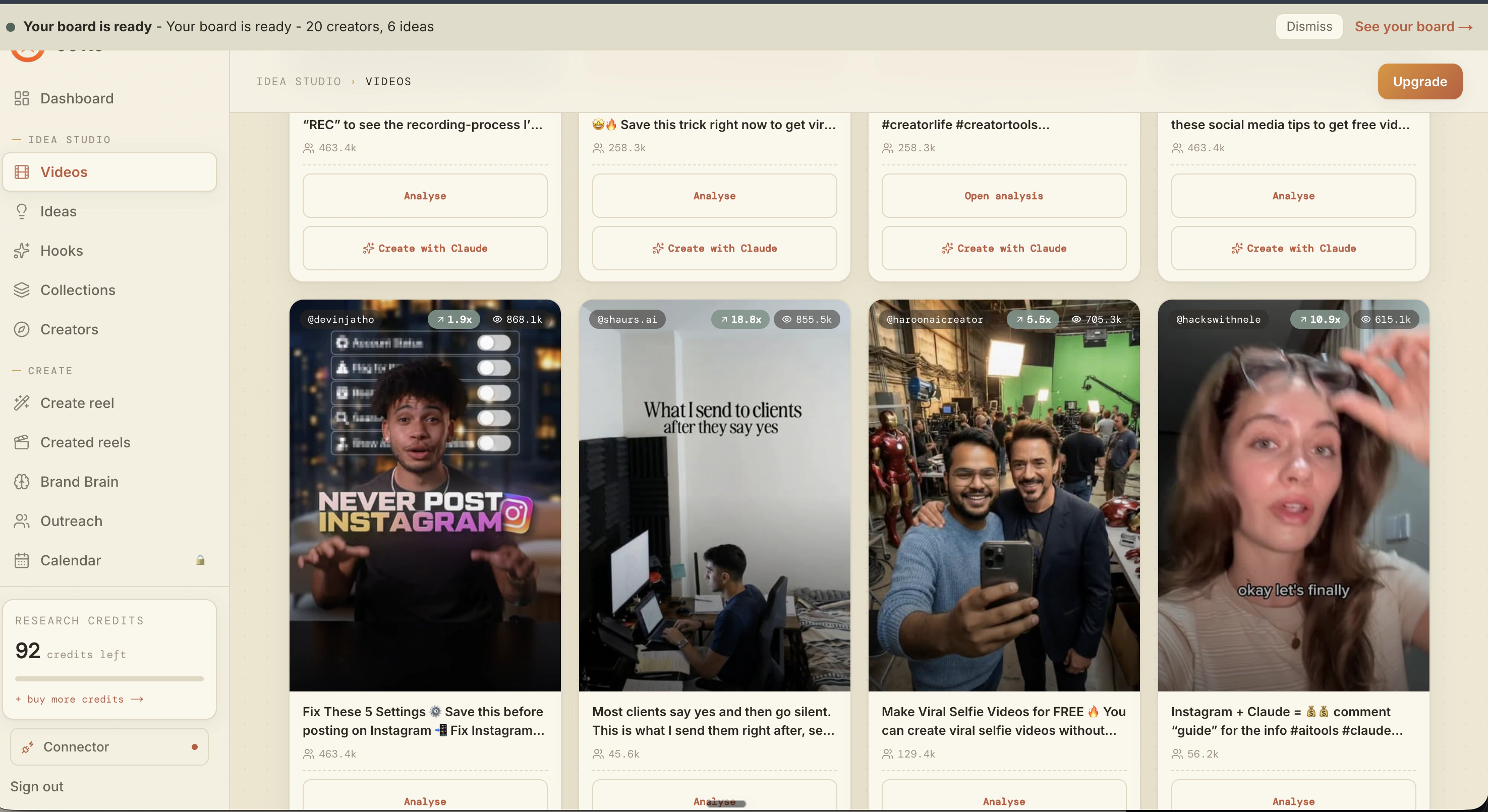
What is actually working now
Ootto pulls what is moving in your niche and loads ranked examples in board.
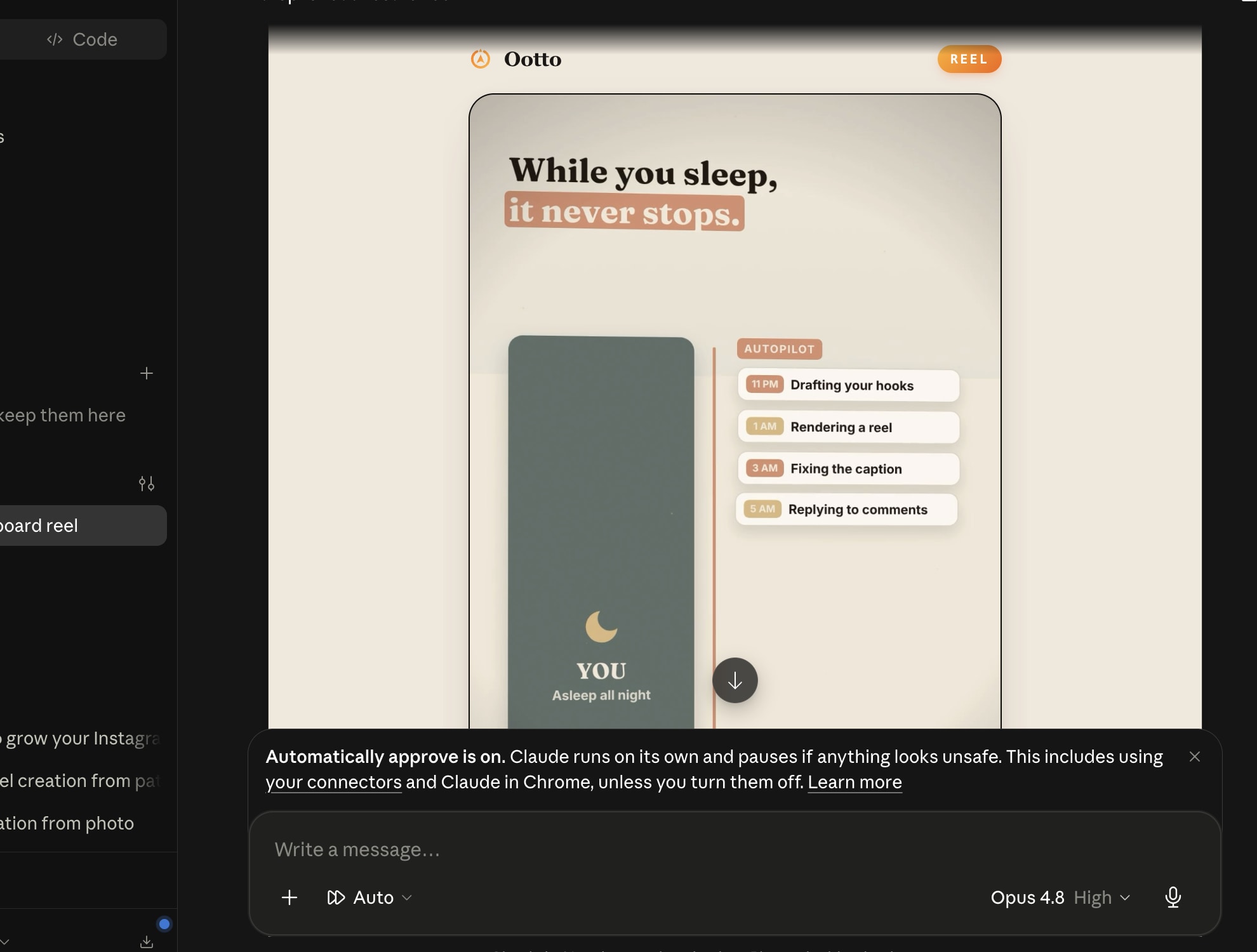
Reels post, comments get answered
Finished reels publish to Instagram and comments are answered with public replies plus DM follow-ups.
Ootto
Run Ootto in your Claude
Skip the manual setup
- Finds winning content opportunities
- Creates on-brand Reels and captions
- Replies to comments instantly
- Starts personalized DM conversations
- Qualifies leads automatically
- Helps book calls and drive sales
- Learns and improves with every interaction
One AI. Every Post. Every Comment. More Leads. More Sales.
Get started$1 today, non-refundable. Starts your 7-day trial, then $48/mo. Cancel anytime.
Get started