Skills
24 Claude Skills to Automate Your Invoicing
The Ootto Team · 8 min read · June 12, 2026
How to use this
1Connect Claude to Instagram
Connect Claude to your Instagram account
One click opens Claude with the connector already filled in - sign in, authorize, and it's live. No key to copy, no setup outside your browser.
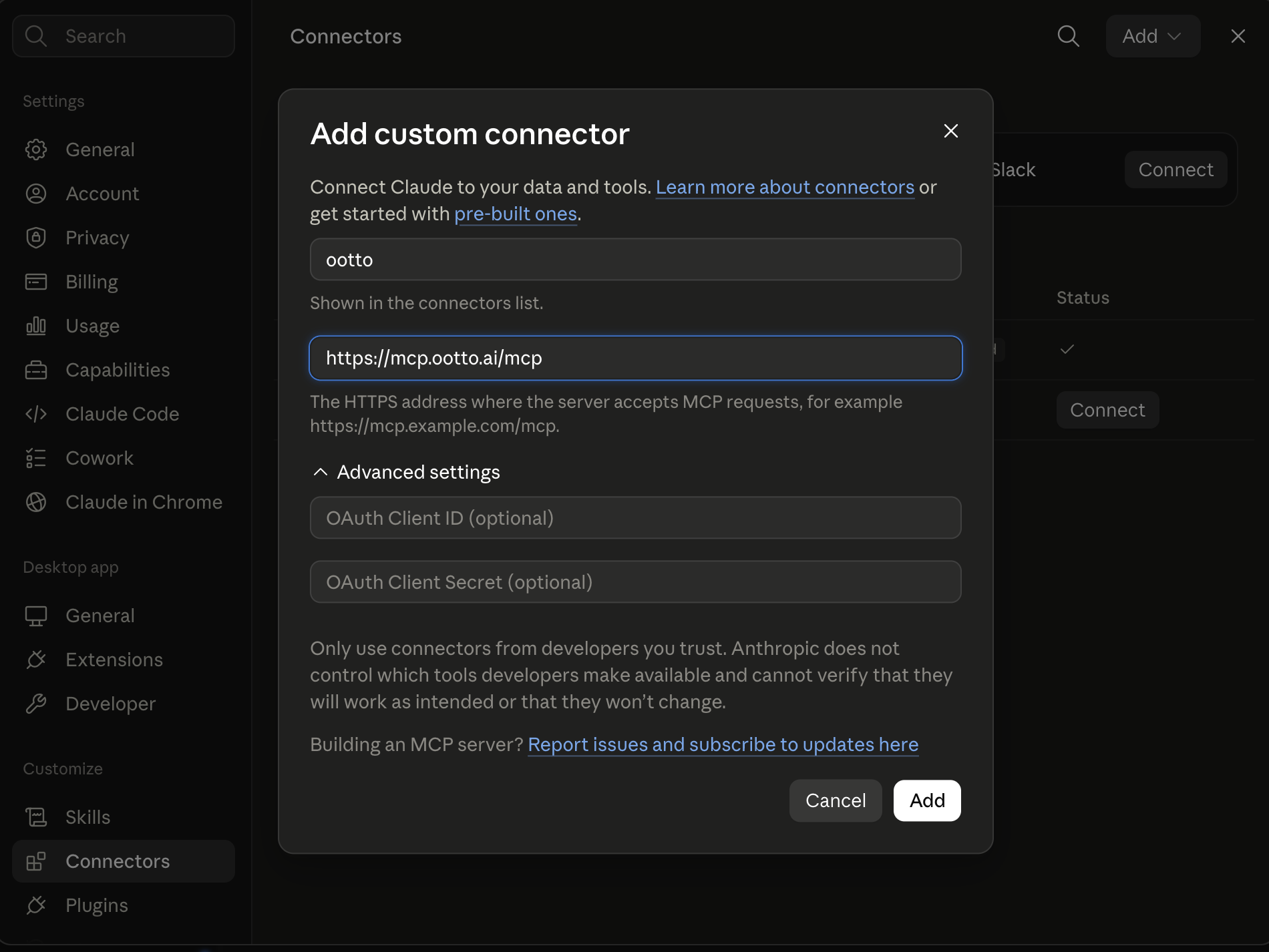
https://mcp.ootto.ai/mcpConnect2Add the skills
Once Claude can reach your account, give it the methods to work with. Clone the free repository and Claude discovers the skills automatically.
git clone --depth 1 https://github.com/Ootto-AI/claude-content-skills.git && bash claude-content-skills/install.shBrowse all 30 skills on GitHubInstructions: how to connect your Instagram account to Claude
Connect above does this for you. If Claude ever opens the dialog empty, here's exactly what goes where:
Ootto
Your 24/7 Instagram Growth Operator
Skip the manual setup
- Posts finished Reels straight to your Instagram
- Real motion-graphic Reels, not slideshows
- Built around your own photos and footage
- Finds winning content opportunities in your niche
- Writes on-brand scripts and captions
- Answers every comment by your own keyword rules
- DMs qualified leads and starts the conversation
- Runs up to 50 Instagram accounts
One AI. Every Post. Every Comment. More Leads. More Sales.
Prompt-based workflows that take the invoicing grind off your plate — drafting the invoice, chasing the late payer, matching the payment that just landed, and telling you in plain English who owes you what. Each one is a "skill": a structured prompt you hand to Claude with your data, and it does the job.
They're markdown. Add them to Claude as a Project, or paste them as prompts. Below are 24, grouped by the part of the cash-flow cycle they handle — and at the end, the faster path if you'd rather not paste prompts at all.
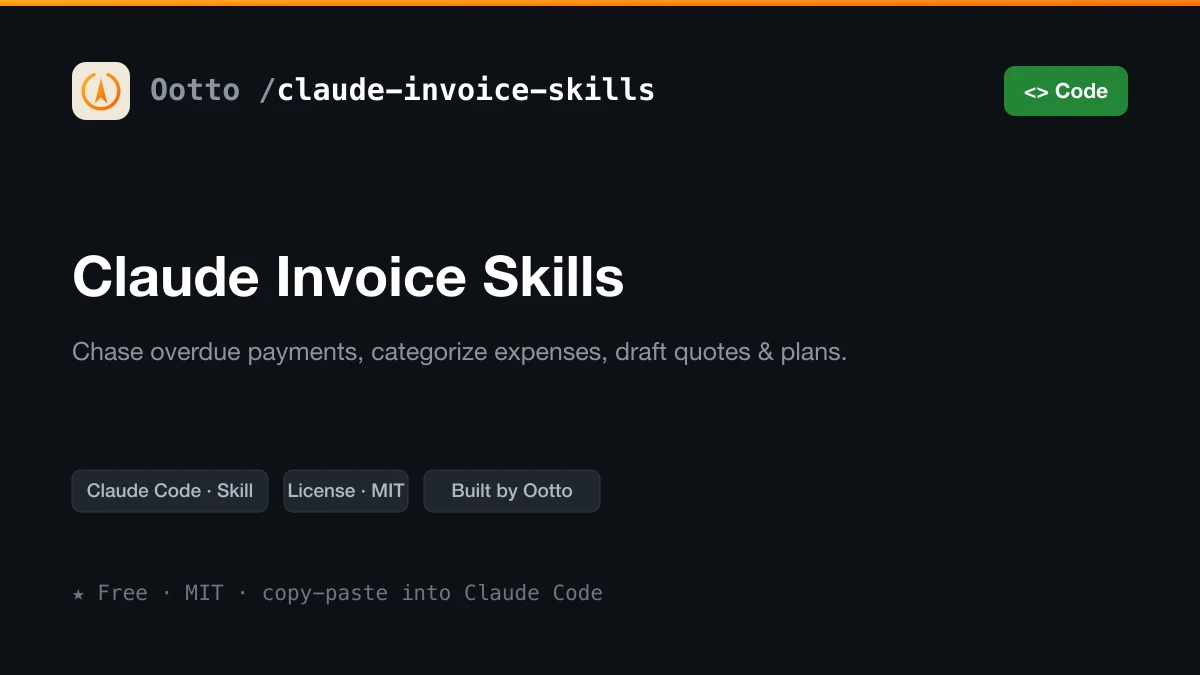
Get all of these as files: the whole set is free on GitHub → Claude Invoice Skills. Install it as a Claude Code plugin, or copy any prompt below.
What these are
A skill is a reusable prompt that does one job well. No code, no setup. Instead of writing the same "your invoice is overdue" email for the fifth time this month, or squinting at a bank statement trying to figure out which payment belongs to which invoice, you paste your data into a skill and Claude does it. You either paste it into Claude with your numbers, or save it inside a Claude Project so Claude keeps your business context and you reuse it in one click.
What it replaces: the manual half of invoicing software. The tool stores the invoice; you still chase, reconcile, categorize, and read the tea leaves. These skills do that part.
Setup: adding skills to Claude Projects
- Open Claude (claude.ai or the desktop app) and create a Project.
- Add your business context as project knowledge — your business name, payment terms (net 15? net 30?), your tone, your bank/currency, and the kinds of clients you bill.
- Paste any skill below into the chat, add your data (the job details, a list of overdue invoices, last month's statement, a payout report), and run it.
- Reuse it whenever the job comes up. The Project remembers your terms and tone so you don't re-explain them every time.
Setup: connecting live data (MCP)
For skills that need live account data — your Stripe payouts, your accounting ledger, your bank feed — an MCP connector lets Claude read directly from your tools instead of you exporting and pasting. It's optional and more technical to set up.
No MCP? Still works. Every skill below runs fine if you just paste the raw data — a CSV export, a screenshot of your invoice list, a copy of your bank statement.
The 6 most used
1. Generate an invoice from a job
Turns the details of a finished job into a clean, client-ready invoice.
Create an invoice for this job: [client name, work done, hours/quantities, rates]. My terms are [net 30, currency, tax rate]. Lay it out with line items, subtotal, tax, total, due date, and the next invoice number after [last number]. Keep the descriptions plain and professional.
2. Recurring invoice run
Generates the whole batch of monthly/retainer invoices in one go.
Here are my recurring clients and their monthly amounts: [paste list]. Generate this month's invoices for all of them — same line items as last month, dated [today], due [terms]. Number them sequentially starting at [number]. Flag any client whose amount changed so I can confirm before sending.
3. Escalating overdue reminder sequence
Writes the right reminder for exactly how late each invoice is.
Here are my overdue invoices with how many days late each one is: [paste]. For each, draft the right reminder. 1-7 days: light and friendly. 8-14 days: a firmer nudge. 15-30 days: direct, with consequences. 30+ days: a final notice before next steps. Include the amount, original due date, and a clear payment link or instruction in every one.
4. Match a payment to an invoice
Reconciles incoming money against open invoices so you stop guessing.
Here are the payments that hit my account this week: [paste amounts, dates, references]. Here are my open invoices: [paste]. Match each payment to an invoice. List the confident matches, the partial payments with remaining balances, and anything you can't match so I can chase it down.
5. Auto-categorize expenses
Turns a messy statement into clean, tax-ready expense categories.
Here's my card/bank statement for the month: [paste]. Categorize every line into standard buckets (software, travel, contractors, supplies, fees, etc.). Flag anything that looks personal, duplicated, or unusually large. Total each category and give me the grand total of business expenses.
6. AR aging report
Shows exactly who owes you what, sorted by how worried you should be.
Here are all my unpaid invoices with amounts and due dates: [paste]. Build an accounts-receivable aging report — group by current, 1-30 days, 31-60, 61-90, and 90+ days overdue. Total each bucket, total the whole thing, and tell me the three accounts I should chase first.
All 24 skills
Create & send invoices
- Generate an invoice from a job — finished-job details → a clean, numbered invoice (see above).
- Recurring invoice run — generate the whole monthly/retainer batch at once (see above).
- Send-on-delivery invoice — draft the invoice and cover note the moment a milestone or delivery is done.
- Line-item & tax builder — turn rough notes into proper line items, subtotal, tax, and the next sequential invoice number.
Payment reminders & collections
- Pre-due nudge — a friendly "this invoice is due in 3 days" heads-up that prevents lateness.
- Day-one overdue reminder — the gentle first nudge the day a payment slips past due.
- Escalating reminder sequence — the right tone for 7 / 14 / 30 days late, in one batch (see above).
- Final-notice drafter — a firm last warning before you pause work or hand it to collections.
Quotes, proposals & payment plans
- Quote / estimate generator — a few bullets about the job → a client-ready quote with pricing.
- Proposal drafter — a scope description → a structured proposal with deliverables, timeline, and price.
- Quote-to-invoice converter — an accepted quote → the matching invoice, no re-typing.
- Payment-plan builder — a fair installment schedule for a struggling client, plus the reminder for each installment.
Reconciliation & payment matching
- Match a payment to an invoice — reconcile incoming money against open invoices (see above).
- Partial-payment tracker — record a part-payment and calculate the remaining balance to chase.
- Stripe / payout reconciliation — match a Stripe (or other) payout, minus fees, back to the invoices it covers.
- Duplicate & unmatched-payment flag — catch double charges, mystery deposits, and payments with no matching invoice.
Expenses & categorization
- Receipt-to-expense capture — a photo or text of a receipt → a clean expense line (vendor, amount, date, category).
- Auto-categorize expenses — a statement → tax-ready categories with flags (see above).
- Recurring-expense tracker — list every subscription and recurring charge, with the ones to cancel surfaced.
- Billable-expense to invoice — pull client-billable costs out of your expenses and onto the right invoice.
AR aging, cash flow & disputes
- AR aging report — who owes what, bucketed by 30 / 60 / 90 days (see above).
- Weekly cash-flow summary — money in, money out, what's coming, and what to do about it, in plain English.
- DSO & top-overdue digest — your days-sales-outstanding plus the customers dragging it up.
- Late-payment dispute responder — a calm, fair reply to a client who's disputing or stalling on an invoice.
Every one of these is genuinely useful on its own. The catch is the same for all 24: you still have to remember to run them, paste the data, and send the output. Fine once a month at the kitchen table — less fine when invoices are going out daily and three payments just landed unmatched.
The faster path: let Ootto run them for you
The 24 skills above are free and they work. But they're still manual — you open Claude, paste the statement, copy the reminder into your email, mark the invoice paid yourself.
Ootto is the done-for-you version. Connect your tools once (Gmail, Stripe, and the rest), Ootto learns how your business bills and gets paid, and it runs these same jobs automatically — sending invoices, chasing overdue payments through every stage, matching incoming payments, categorizing expenses, and delivering your cash-flow and aging summaries — without you opening anything. It gets sharper every week as it learns which clients pay late and which reminders work.
The skills are manual mode. Ootto is autopilot. See what that runs at on the pricing page.
New to automating the back office? Start with our complete guide to AI business automation, or see the wider set in Claude skills to automate your small business.
Route A: do it yourself
Start with the exact free skill for this outcome
MIT, no account, no email. Install first, then run the command for your account.
For chasing overdue invoices: Invoice Chaser
git clone --depth 1 https://github.com/Ootto-AI/claude-invoice-skills.git && bash claude-invoice-skills/install.sh
Installs the free MIT Invoice Skills bundle into ~/.claude/skills in one shot.
/invoice-chaser [invoice number, amount, due date, days overdue]
Drafts the right payment reminder, tone matched to how late the invoice is.
Route B: let Ootto run it
Ootto replicates this on autopilot
Open the dashboard, connect once, then let the pipeline handle research, production, and lead replies.
Open the connector dashboard
Go to /content/login, sign in, and open your Ootto content dashboard.
Add Ootto to Claude
Use the one-button Add flow so Ootto appears in Claude's Connectors panel.
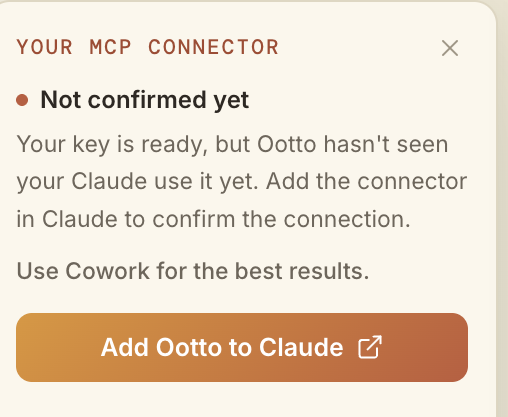
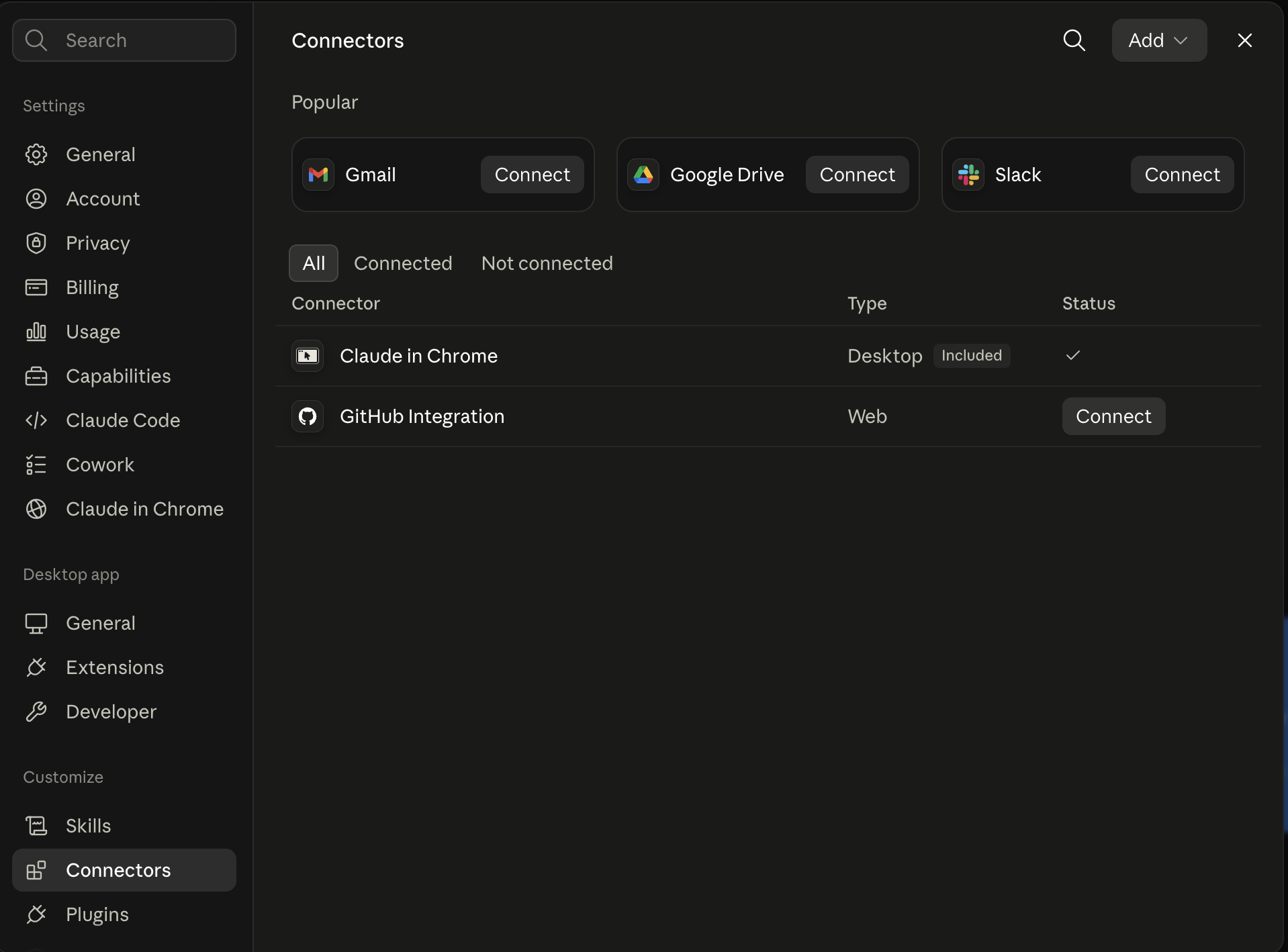
Claude shows the connector
The connector lands in Claude's Connectors settings, confirming Ootto is wired.
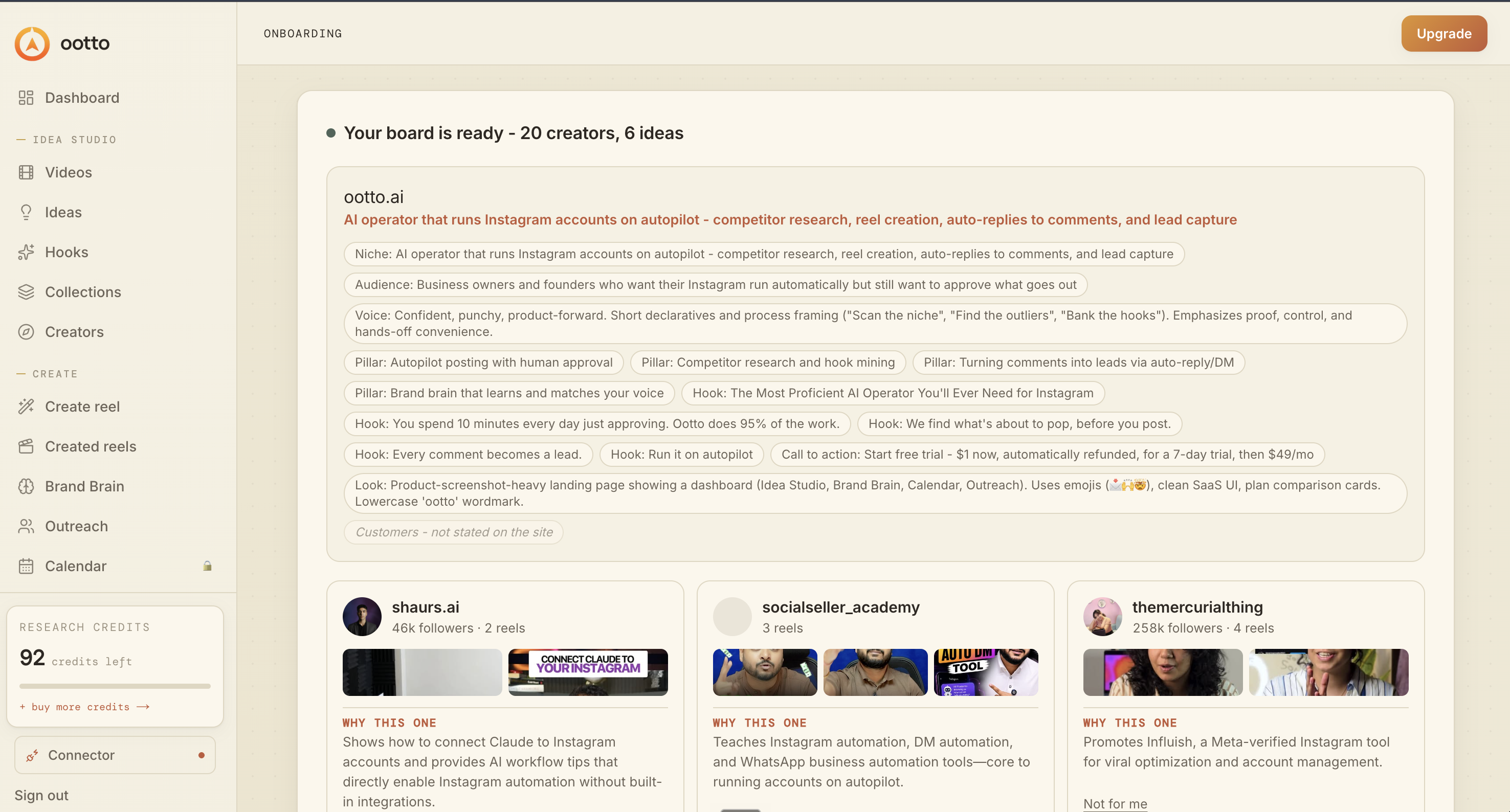
Board reads back your context
Your audience, pillars, voice, and creator signals are filled from account context.
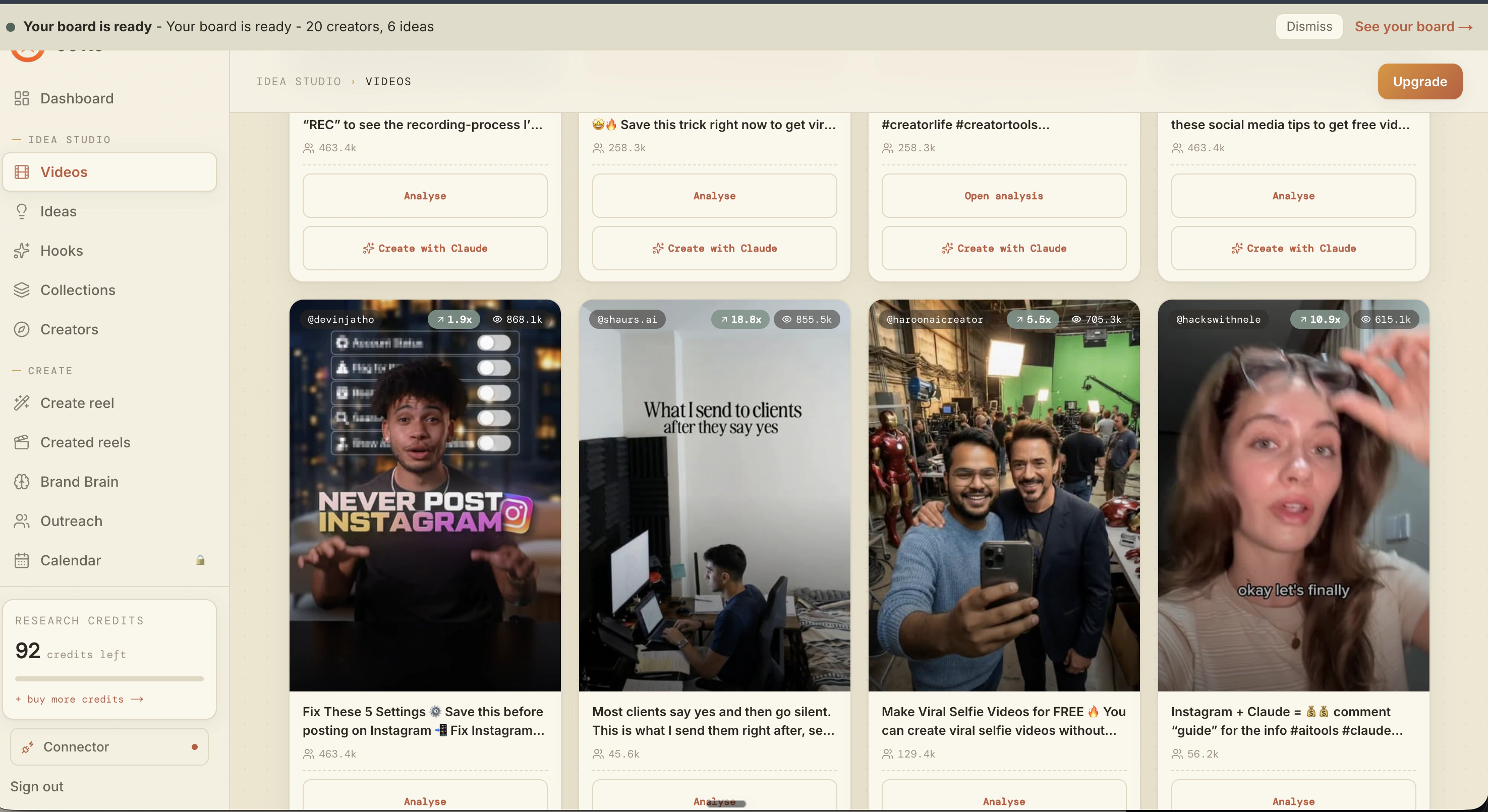
What is actually working now
Ootto pulls what is moving in your niche and loads ranked examples in board.
Reels post, comments get answered
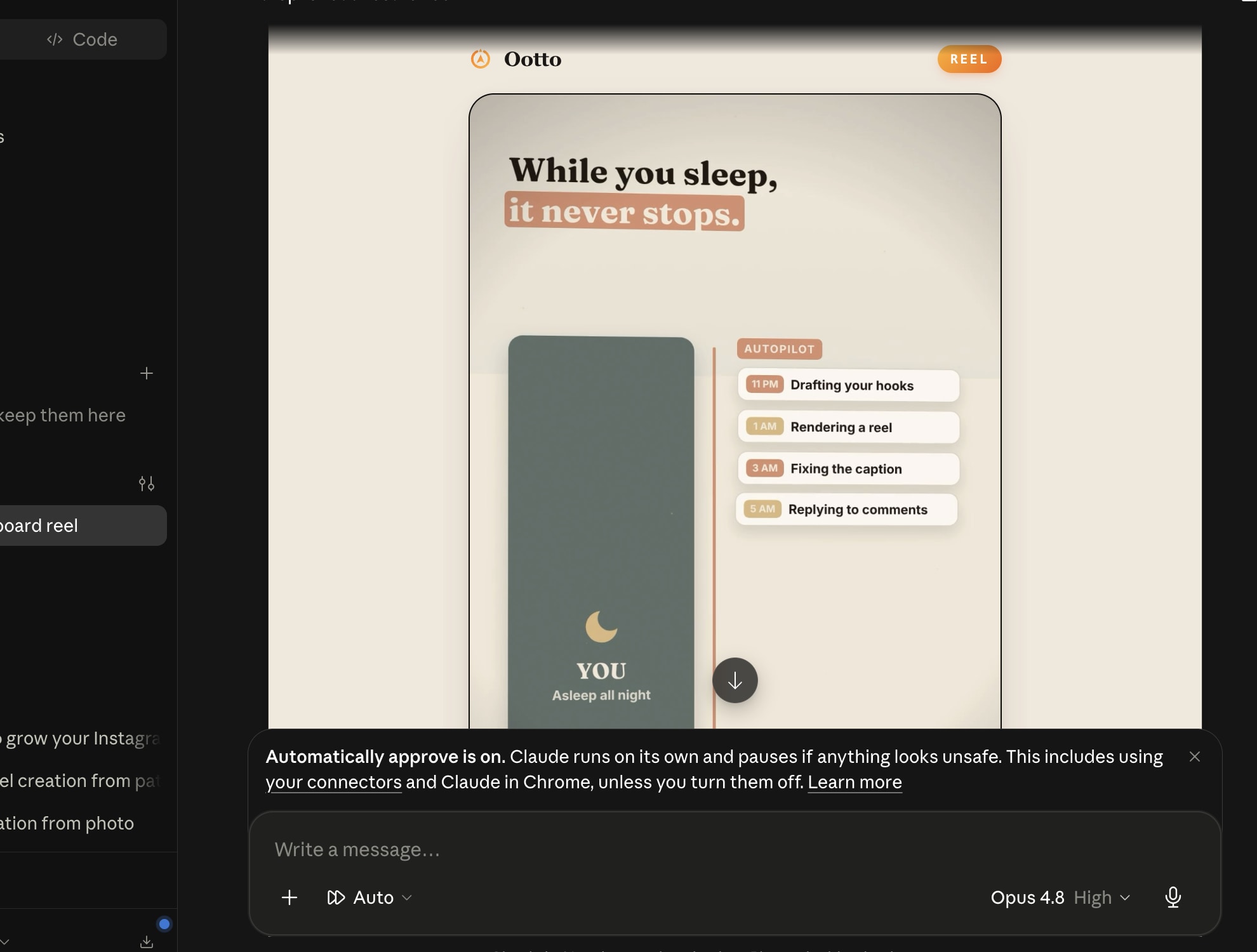
Finished reels publish to Instagram and comments are answered with public replies plus DM follow-ups.
Ootto
Run Ootto in your Claude
Skip the manual setup
- Finds winning content opportunities
- Creates on-brand Reels and captions
- Replies to comments instantly
- Starts personalized DM conversations
- Qualifies leads automatically
- Helps book calls and drive sales
- Learns and improves with every interaction
One AI. Every Post. Every Comment. More Leads. More Sales.
Get started$1 today, non-refundable. Starts your 7-day trial, then $48/mo. Cancel anytime.
Get started